 Spark Prime Network blog news
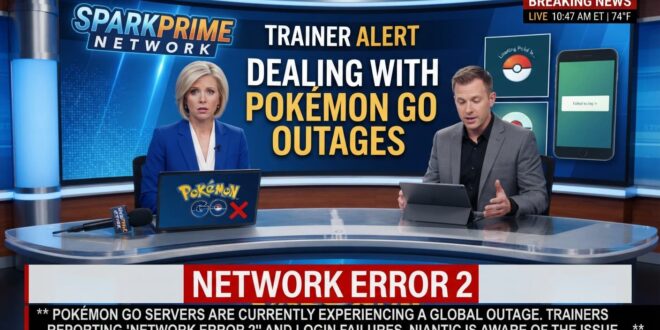
There is nothing quite like the panic of stepping outside, launching Pokémon GO for a community meetup or a legendary raid hour, and being greeted by a freezing loading screen or the dreaded Pokemon GO network error 2.
Whether it’s a sudden server crash or a routine blip, server outages can bring our outdoor adventures to a screeching halt. If you are currently locked out of your account or wondering why your nearby radar is completely blank, here is what you need to know about recent Pokemon GO network error 2 outages and how to troubleshoot them.
What Happens During a Pokemon GO network error 2 Outage
When Niantic’s servers take a hit often triggered by high traffic during major events, global updates, or unexpected technical glitches players usually experience a few textbook symptoms:
-
The Infinite Loading Screen: The game opens to the Niantic logo or a loading bar that stops dead in its tracks.
-
Failed Authentication: Trying to log in via Google, Apple ID, or Pokémon Trainer Club results in an instant error or a blank white screen.
-
Network Error 2: A sudden popup message indicating that the game has completely lost connection to the server backend.
-
Missing Elements: Gyms, PokéStops, and Pokémon fail to load, rendering the map totally empty.
How to Check If It’s Niantic or Just You
Before you start tearing your hair out or uninstalling the app, it’s important to figure out whether the servers are genuinely down for everyone or if the issue is isolated to your phone or network.
-
Check Community Channels: Look at platforms like X (formerly Twitter) or Reddit (r/TheSilphRoad). If thousands of other trainers are posting about a sudden blackout, it’s a confirmed server-side outage.
-
Use Outage Trackers: Websites like Downdetector or status aggregators monitor spikes in user reports to show real-time server health.
Quick Troubleshooting Checklist
If the official status trackers show that servers are operational, but your game still won’t cooperate, try these quick fixes to get back on the path to becoming a Pokémon Master:
-
Toggle Airplane Mode: Turn Airplane Mode on for 10 seconds, then turn it off. This forces your phone to reconnect to your mobile data or Wi-Fi network.
-
Switch Connection Types: If you are on Wi-Fi, switch to mobile data (or vice versa) to rule out a local internet provider hiccup.
-
Clear the App Cache (Android): Go to your phone’s Settings > Apps > Pokémon GO > Storage and select Clear Cache. Avoid clearing data unless you remember your exact login credentials!
-
Check Device Permissions: Ensure that location services are fully enabled and set to high accuracy.
-
Update the App: Head to the App Store or Google Play Store to make sure you are running the absolute latest version of the game.
Pro Tip: Never delete and reinstall the app during an active server outage thinking it will fix the problem. Doing so will only make it harder to log back in once the servers are restored!
Sit Back and Catch Your Breath with Pokemon GO network error 2
Server outages can be deeply frustrating especially if they happen right in the middle of a prized raid or a special event window. Fortunately, most major outages are resolved by Niantic’s engineering teams within an hour or two.
Take a quick break, hydrate, and let the servers stabilize. The Pokémon world will still be waiting for you when you return.
Is Pokémon GO Down Right Now? Server Outage, Login Errors & What You Need to Know!